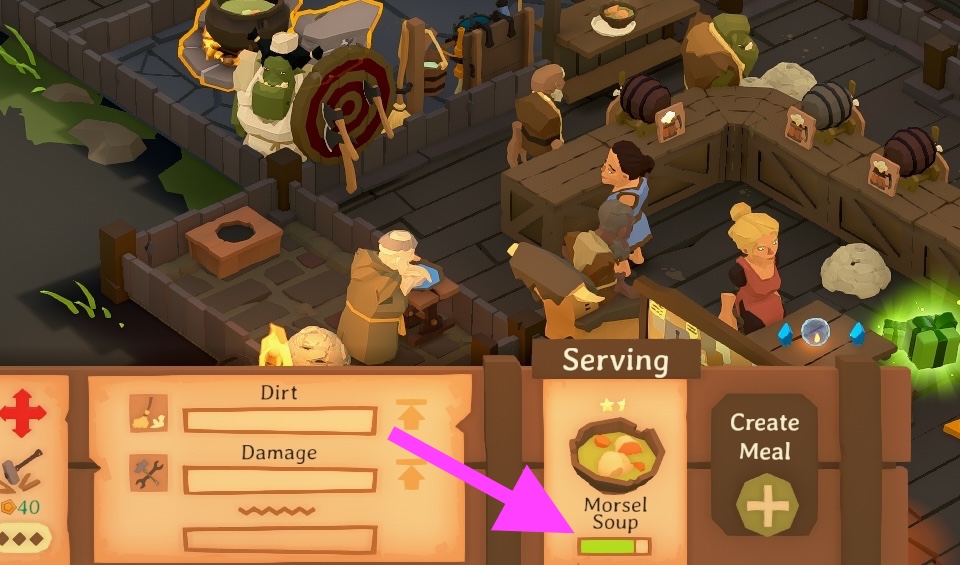
Crafting Soups and Stews
What warms the belly also warms the heart!
Crafting a soup or stew is a three-step process.
- Buy the ingredients: you’ll need water, morsels or chunks, and some vegetables (optional, but recommended).
- Create the recipe
- Select the recipe at the soup pot
1 Get the Ingredients
To able to use water, you will need to build a well (Build Menu > Outdoors)
If you have no water in storage, your chef will collect what they need from the well, but it is a good idea to have some ready.
To start stocking water, you need to increase the requested amount in the storage overview.
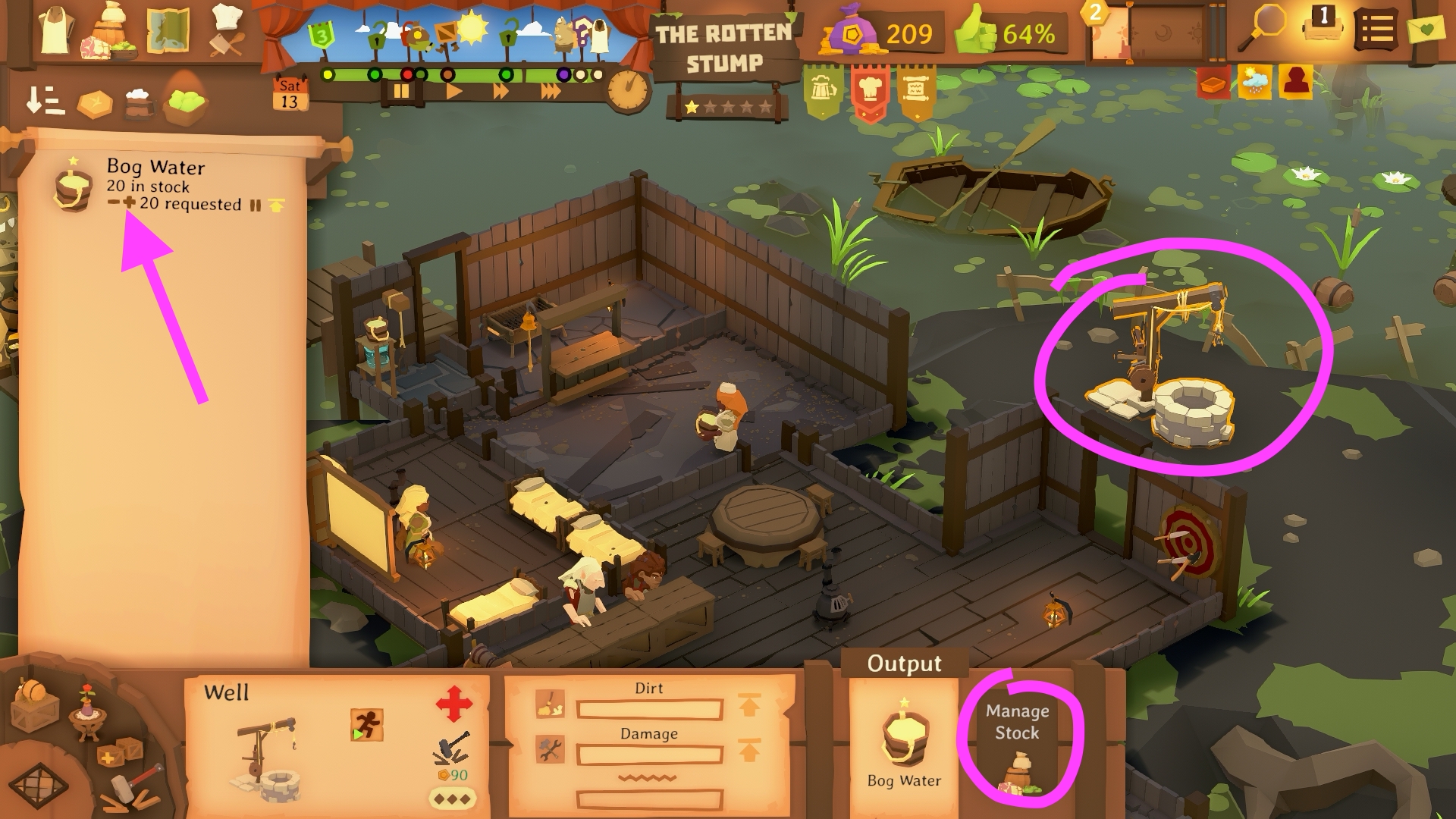
Get the other ingredients from the travelling merchant or from a market via the world map (default key M). There is no need to wait for them to be delivered; you can start the next step straight away.
Bonus tip: When browsing for ingredients, check the tooltips for these buttons. They’ll tell you what type of storage you’ll need and how the ingredient can be used.
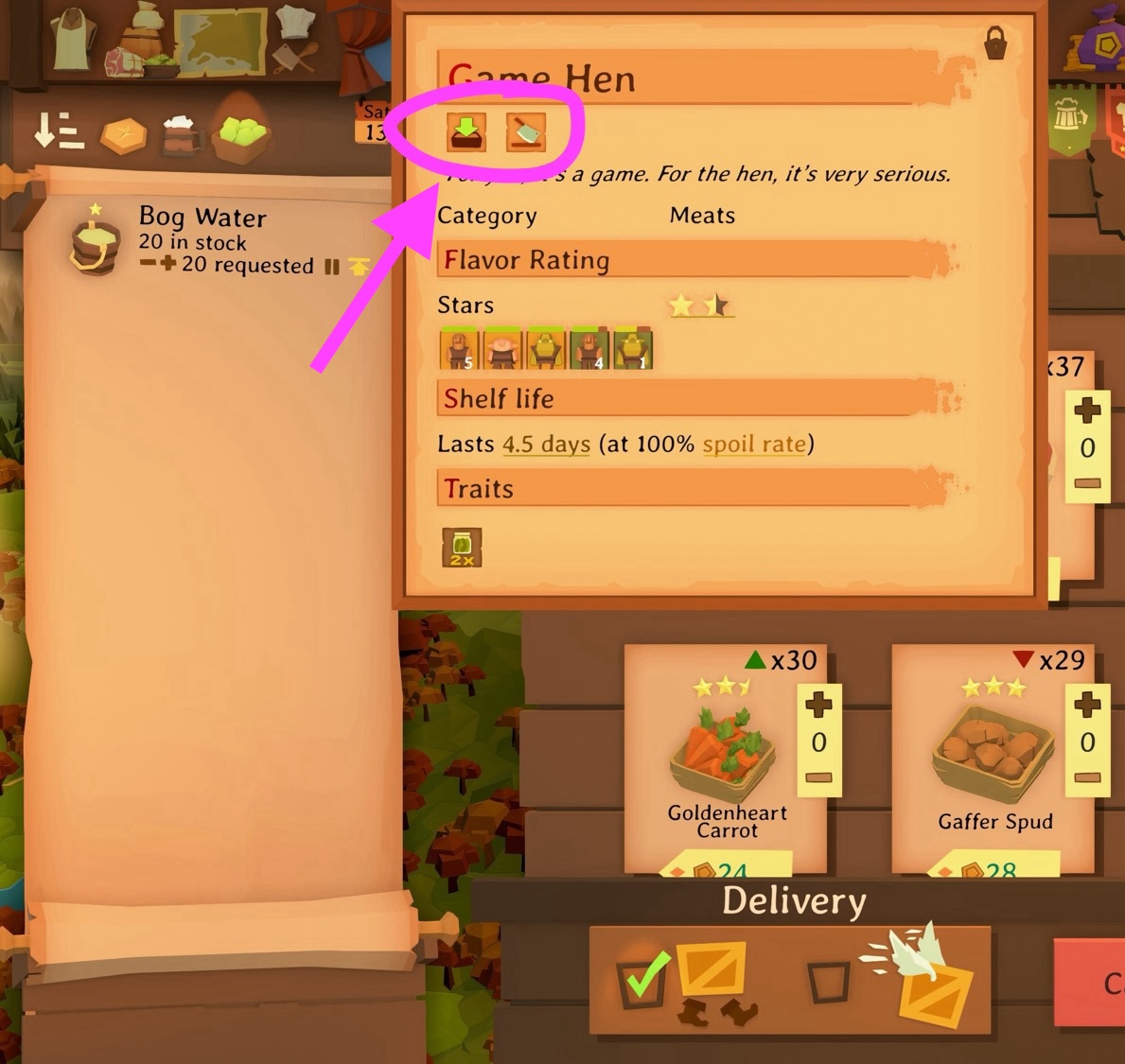
2 Create the Recipe
Once you have ordered the ingredients, click on the soup pot and then the 'Create Meal' button.
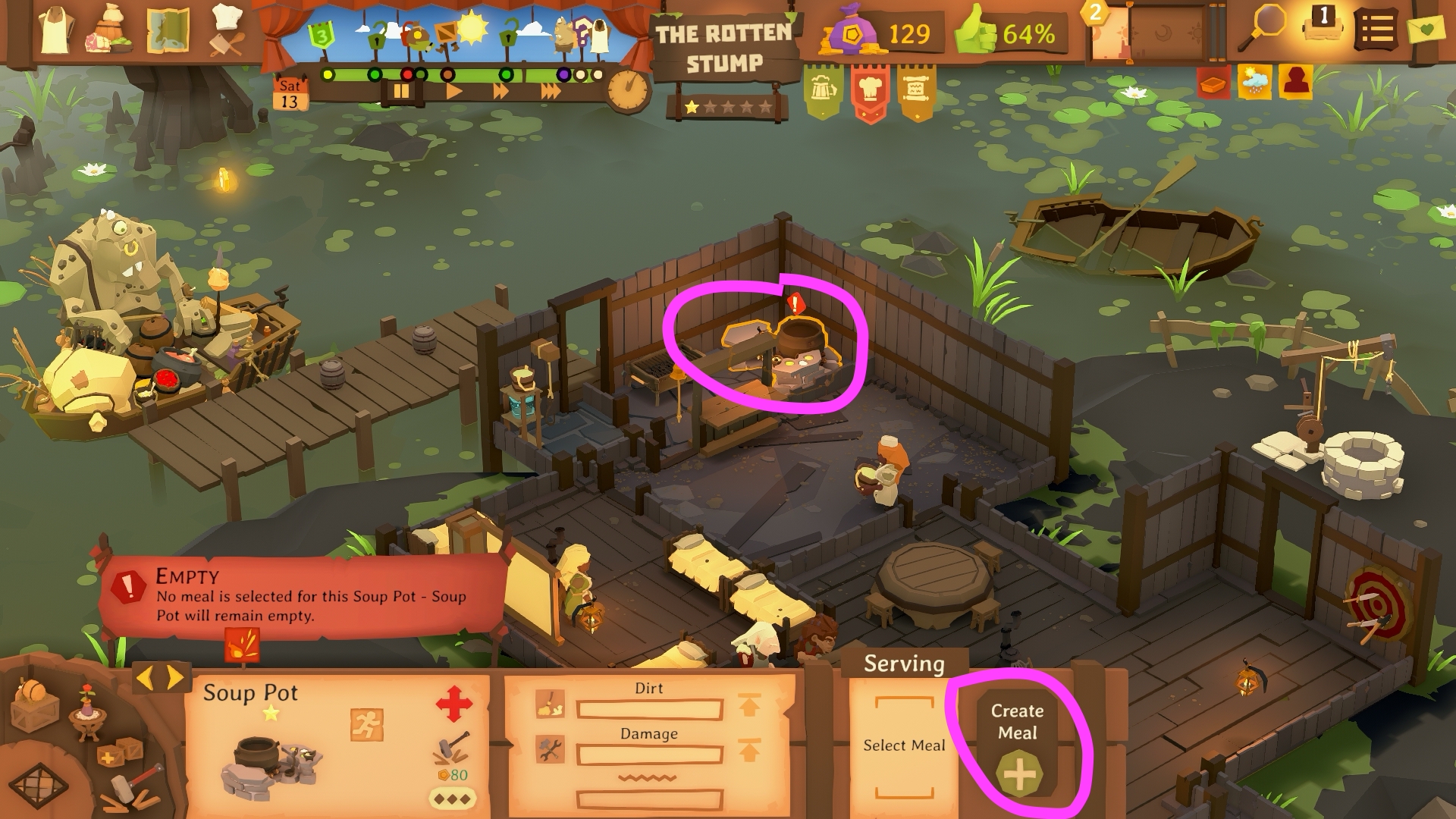
In the menu designer, you need to
- Choose the liquid (usually water, but different varieties are used in different scenarios).
- Click on 'Morsel/Chunks' tab and select your preferred option.
- Click on the vegetables tab to choose the vegetables.
- Optional: Rename your dish and adjust the price.
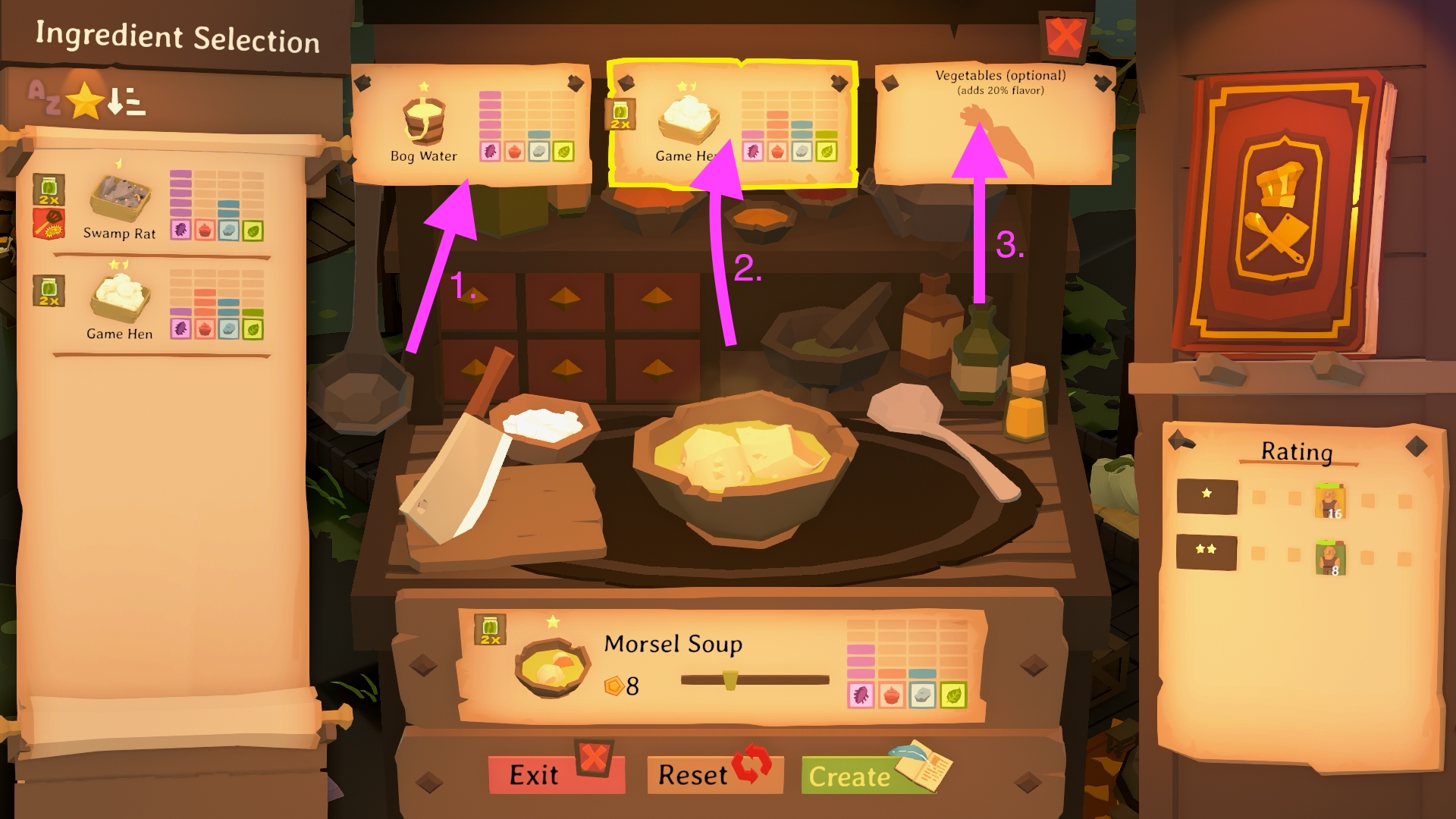
Once you are happy with it, click Create.
3 Choose the recipe to be prepared
Now back to the soup pot. You can now select the recipe you just created to be cooked in the soup pot via 'Select Meal'.
This will instruct your staff member to start preparing the soup, provided that all the necessary ingredients are available. Otherwise, a warning will pop up.
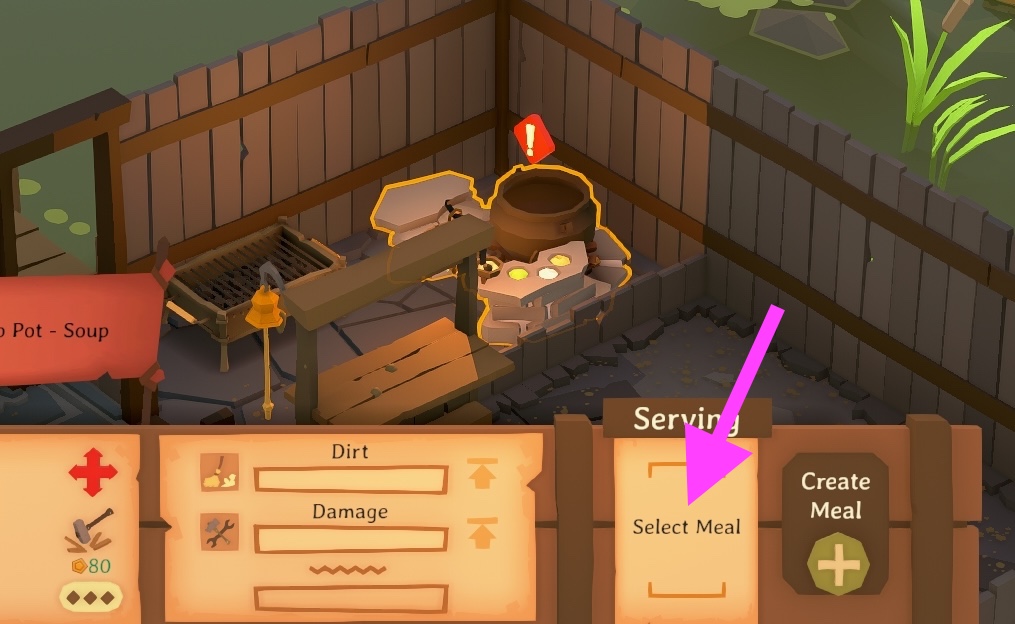
While the recipe is being prepared, you will see this icon and a blue progress circle appears over the soup pot.

Serving time!
Once the soup/stew is ready, a green bar will appear below the name of the dish to indicate how many portions are left. You can find more information in the tooltip for that button.